TruVerbatim is an AI-powered tool designed to analyse and code open-ended survey responses. This guide walks you through everything you need to know to get the most out of the application.
Why Use TruVerbatim
- Flexible Topic Discovery: Automatically detect themes using a hybrid blend of deep learning, machine learning, and large language models, or upload and apply your own existing codeframe.
- Granular Insight: Explore themes and sub-themes at multiple levels of detail using dynamic, interactive visualisations.
Rich Exports: Generate PowerPoint reports, Excel exports, and structured codeframes ready for downstream analysis.
- Powerful Analysis Layer: Crosstab topic percentages against profiling variables, or search for verbatim examples matching specific criteria.
- Conversational Workflow: A fluid, agentic interface that allows you to quickly build a clear narrative from verbatim data.
System Requirements
- Browser: Google Chrome, Microsoft Edge, Firefox, or Safari (latest versions recommended)
- Internet Connection: Required for all features, as data processing takes place in the cloud.
- File Format: Verbatims: CSV files (comma-separated values), Codeframes: CSV or Excel files
Accessing the Application
- Open your web browser. Navigate to: https://truverbatim.com
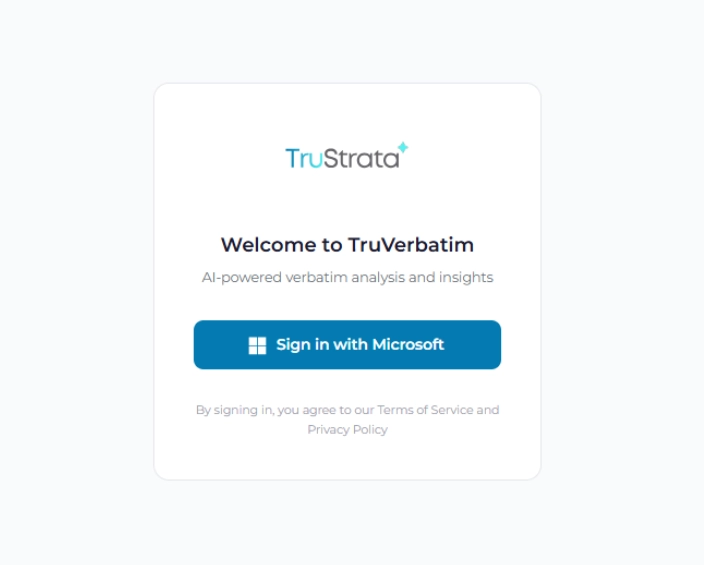
- The login screen displaying the TruVerbatim logo will appear.Access credentials will be provided by your system administrator.
Logging In
- You can login in using a Microsoft or Google account following the authentication steps on the screen
- Click the Login button.
Understanding the Interface
After logging in, you will see a chat-style interface, similar to modern messaging applications.
The main conversation area where the system displays:
- System responses and results
- Interactive charts and visualisations
- File upload confirmations
- Analysis progress updates
- Q&A responses
- Export options
Text Input Box Located at the bottom of the screen. You can use this to:
- Type messages and questions
- Send commands to the system
File Upload:
- Drag and drop files into the upload area
- Click the upload button to add a CSV or Excel file
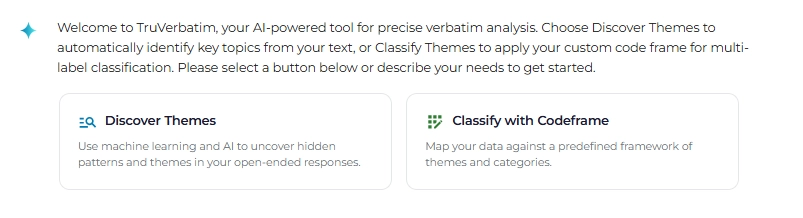
Starter Buttons: Quick-start options displayed at the top of the interface:
- Discover Themes: Start automatic topic discovery from your dataset.
- Classify with Codeframe: Apply a pre-defined codeframe to classify responses.